The AllyCAD Toolkits
THE ARCHITECTURAL TOOLKIT FEATURES
| |
 |
|
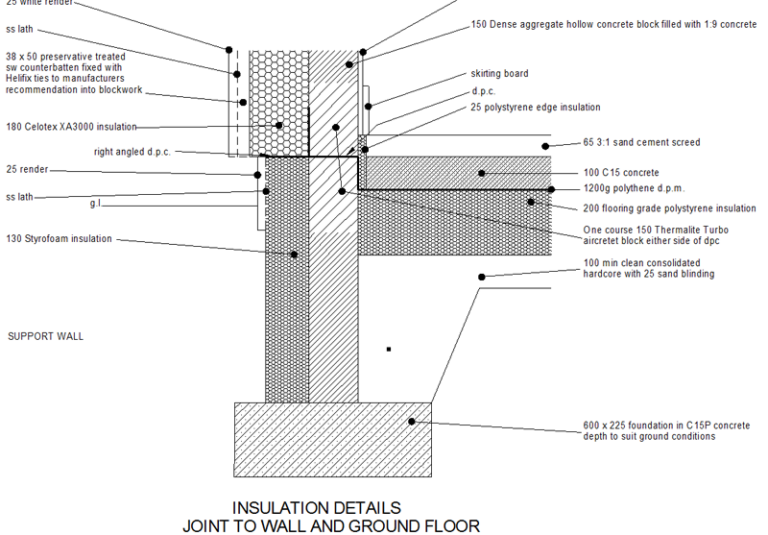
The Architectural Toolkit speeds up many of the activities that are used to draw building plans. You can draw the external and internal walls of a building easily and joins between walls are automatically cleaned up as you go along. Add the roof plan by simply indicating the outside walls and specifying the overhang. Insert door, window and fitting symbols and generate elevations and sections quickly.
|
TOOLKIT SETUP:
• Set and edit the building standards
• Load and save building standard files
• Ships with SABS 0400-1990 building standards
DRAW WALLS:
The wall setup dialog allows you to edit, save and reload previous internal and external wall types. It also specifies whether you would like foundation or cavity walls included. You may swap between the external and internal wall types with ease and can specify whether you would like the wall to track around an existing line, or to be drawn fresh.
Other handy features allow you to specify whether the wall is drawn with inside or outside justification, whether your drawing direction is clockwise or anticlockwise and which layer you would like the wall drawn on. You may even specify the wall end finish. This includes what your start and end angle should be, and whether the ends of the walls should be open or closed.
- Set up the pen, line type, line width and visibility of the
foundation, wall and cavity lines of the internal and external
walls
- Alter the thickness of the foundations, walls and cavities
- Alter, load and save wall specifications
- External and internal walls
- Draw wall lines fresh or track around an existing layout
- Close off the ends of the wall
ADD ROOF LINE TO PLAN:
This function is used to add a roof line to a plan. The roof line is used to draw the roof elevation and cross-sections.
Adding a roof line to the elevations is easily achieved by first specifying the eaves overhang, pen colour, linetype and the layer in which you would like the roof line to be drawn in. The roof line is then tracked around the existing plan layout in a matter of seconds.
- Alter the roof line settings
- Specify the eaves overhang
- Select the pen and line type for the roof line
PLACE SYMBOLS
This architectural submenu is used to place symbols on the plan view.
For ease of reference, the symbols for doors, windows, sanitary ware, kitchen units and other symbols, have all been grouped in a tree structure, and now appear in a symbol library tree. Symbols are placed easily on the drawing by clicking on the desired symbol library in the tree.
This loads the relevant library and a dialog that shows a selection of symbols in the library. These can then be selected and placed anywhere on the drawing. Symbol options include, allowing the symbol to snip the lines around it, to be rotated, to be scaled in the x and y planes or to auto-rotate itself onto a line. Users can also specify different symbol library trees by changing the path in the architectural setup dialog.
- Doors, Windows and Furniture
- Insert door, window and furniture symbols
DRAW ELEVATIONS
This function is used to draw elevations from the existing plan view.
You may draw all elevations by simply clicking on the plan layout, and then indicating the roofline as well as the doors and windows that will appear in the elevation. The elevation is then automatically placed on the correct layer and The eaves height, door height and layer settings may be configured in the elevation setup dialog.
- Alter the elevation settings including layers, pen, line type,
eaves height and window and door height
- Windows, doors and walls extracted from the plan view
ADD ROOF TO ELEVATION
This architectural submenu is used to draw a roof on an elevation.
By adding a roof to the elevation, the last stage of the elevation function is completed. The dialog allows you to specify the roof pitch, pen colour, linetype and layer settings. Facing and side gable roofs may be added to the elevation by indicating the roof line of the elevation, and then indicating the facing and side gables you prefer to appear in the plan layout view.
- Alter the roof settings including layer, pen, line type and roof
pitch
- Add facing and side gables
DRAW CROSS SECTIONS
This function draws horizontal and vertical cross sections from the existing plan view.
Horizontal and vertical cross sections may be drawn by specifying the external and internal walls, as well as the trusses in the plan layout. Section lines and labels as well as truss specifications and foundations, are all specified in the cross section setup dialog. Section lines and labels are automatically placed on the plan layout, while the cross section is automatically placed in the correct layer.
- Alter the cross section, foundation and truss settings
- Select the pen and line type
- Automatically adds section line and labels to plan view
- Add cross and facing trusses
- Includes windows and doors in the section
DRAW STAIRS
This function is used to add plan and elevations of staircase to drawings. The following options are specified in the stairs setup dialog: railing and tread dimensions, tread and baluster spacing, rise, going, pitch as well as nosing dimensions.
The staircase height and length may be adjusted according to the number of treads and tread dimensions specified, while the different railing and tread settings may be edited, saved and loaded.
The user has the option of specifying left and/ or right railings. The landings may be added by simply indicating start, corner and end sections on the plan. In addition, the landing elevation may be drawn by indicating the start, corner and end sections, and then indicating the foot of the landing in the corresponding elevation view.
- Plan views and elevations
- Add inside and/or outside handrails
- Specify pen and line types
- The total rise and going is automatically updated as the
number of treads is altered
- Alter the clearance width, balustrade, newel, nosing and
string dimensions
- Load and save staircases
<< Back to Toolkits Summary
|